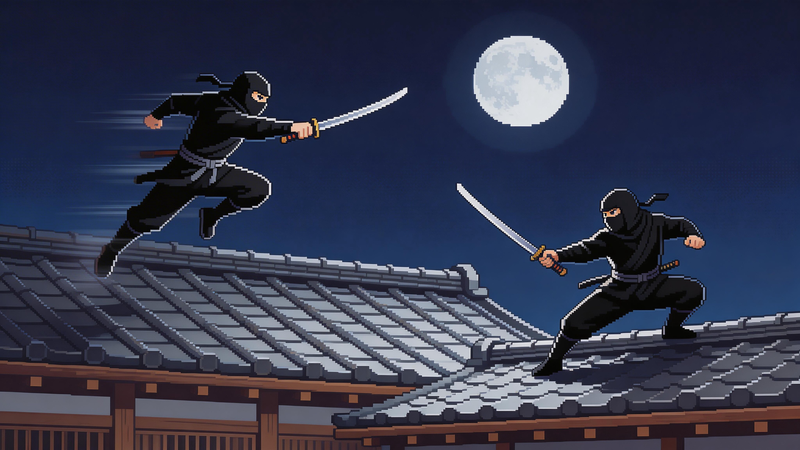
Want to turn your photos into cool pixel art but don't know where to start? You're not alone. Many people love the retro look of pixel art but think it requires complicated software or artistic skills. The good news is, you can convert an image to pixel art online in just a few seconds, and you don't need any design experience at all.
Pixel art has that nostalgic charm that reminds us of classic video games from the 80s and 90s. It's perfect for profile pictures, game assets, social media posts, or just for fun. Let me show you how easy it is to transform any image into pixel art using an online tool.
The Tool Used: PictoPixel
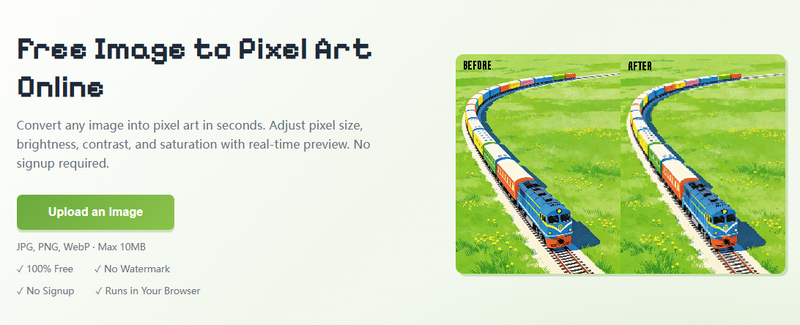
PictoPixel is a free picture to pixel art converter that can transform your original photo into pixel art style instantly. It offers many useful options to help you customize the pixel art creation. Change block size, adjust brightness, apply presets, and more to fit your needs. Preview any changes in real-time on the board. You have full control of the final pixel art at fingers. The tool makes it easy to create pixel art for anyone.
In this article, we will take this tool as an example, showing you how to convert an image into pixel art step by step.
Make Pixel Art In Simple Steps
Step 1: Visit PictoPixel.art
Input the website link in your browser and visit pictopixel.art.
Step 2: Choose Your Image
The first step is picking the right photo. Not all images work equally well for pixel art. Here's what works best:
- Clear subjects – portraits, logos, or simple objects
- Good contrast – images with light and dark areas
- Not too busy – avoid cluttered backgrounds or too many details
- Higher resolution – start with a decent quality image
Photos with faces, pets, or simple objects usually turn out great. Complex landscapes can work too, but you might need to experiment with settings to get the best result.
Step 3: Adjust the Pixel Size
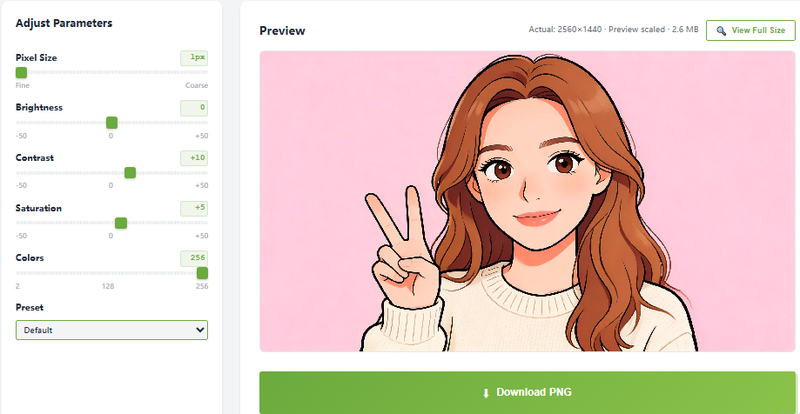
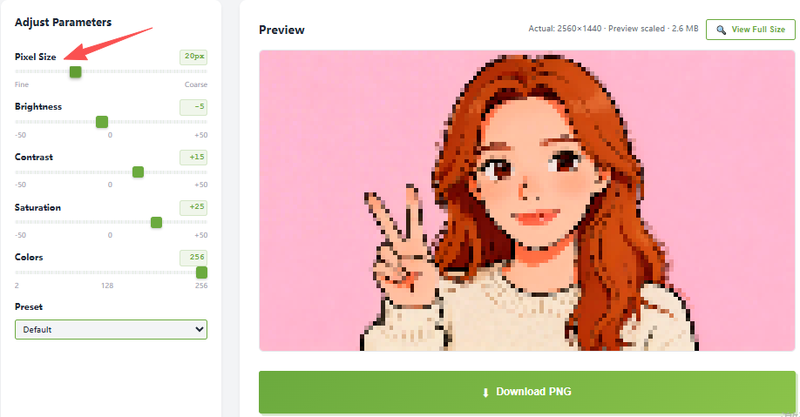
Once you have your image ready, it's time to convert it into pixel art. The pixel size setting is the most important control you have. It determines how big each "block" is in your final image.
- Smaller pixel size means more detail – you can recognize more features in the image, but it looks less "pixelated."
- Larger pixel size gives you that chunky, blocky retro look – less detail, but more obvious pixel art style.
PictoPixel.art lets you preview changes in real time. I suggest starting somewhere in the middle and adjusting from there. For portraits, you usually want enough pixel size to see facial features. For logos or simple graphics, you can go larger for a more dramatic effect.
Step 4: Fine-Tune Your Settings
After setting the pixel size, you can tweak other settings to improve the result:
- Brightness – if your image looks too dark or washed out, adjust this. Brighter settings can make pixel art look more cheerful and clear.
- Contrast – this affects the difference between light and dark areas. Higher contrast makes shapes stand out more, which works well for pixel art.
- Saturation – controls how intense the colors are. Lower saturation gives a muted, vintage feel. Higher saturation makes colors pop.
- Colors – some tools let you limit the color palette. Fewer colors can give a more authentic retro game look.
Don't overthink it. Small adjustments go a long way. Most of the time, the default settings work pretty well.
Step 5: Download Your Pixel Art
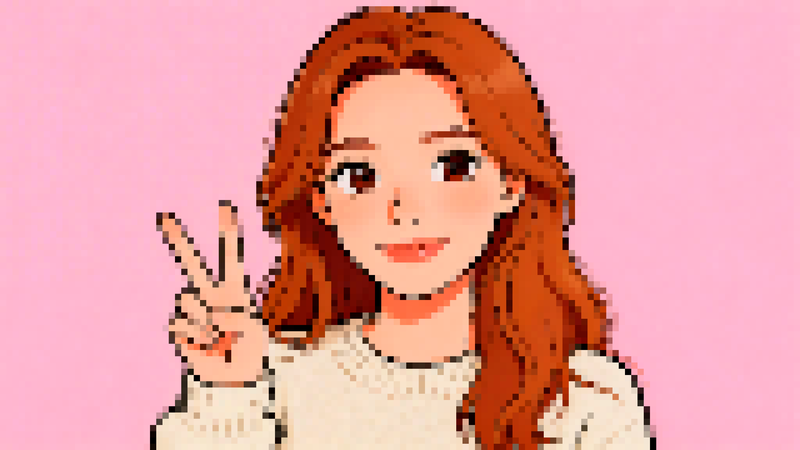
Once you're happy with how it looks, just download the image to your device as a PNG file, which works great for sharing online.
The download is ready to use anywhere – upload it to social media, use it as a profile picture, add it to a website, or print it out. The pixel art effect scales well, so it looks good at different sizes.
Tips for Better Results
Here are some things I've learned from converting many images:
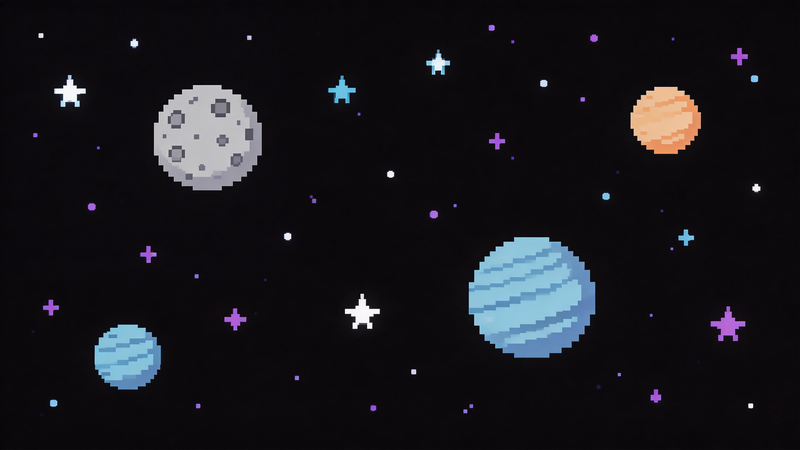
- Start simple – your first try doesn't need to be perfect. Upload an image, pick a preset, and see what happens. You can always adjust.
- Crop first – if your photo has unnecessary background, crop it before converting. The pixel effect works best when your subject is the focus.
- Experiment with presets – sometimes a preset gives you a result you didn't expect but love. GameBoy and NES styles can make ordinary photos look like game characters.
- Save different versions – download a few variations with different settings. You might prefer one version for social media and another for printing.
- Use the right subject – faces, pets, and simple objects work best. Complex images with lots of tiny details can get muddy when pixelated.
Why Convert Picture to Pixel Art with Online Tools
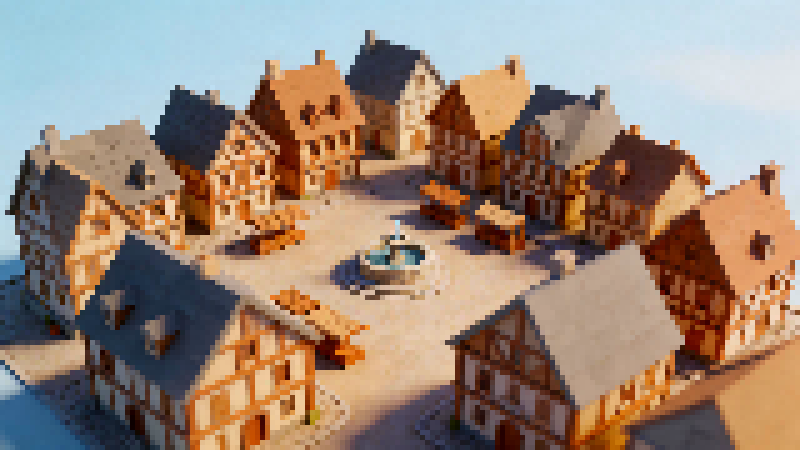
Not all tools are created equal—and when it comes to turning your picture into pixel art, online tools have a clear advantage.
First, they’re incredibly easy to use. You don’t need to install anything or learn complicated software like Photoshop. Just upload your image, adjust a few settings, and download the result. It works on any device, which is perfect for quick edits anytime, anywhere.
More importantly, online converters like PictoPixel.art handle all the technical work for you. They automatically resize your image, simplify colors, and apply pixel effects in seconds. What used to take time and skill can now be done with just a few clicks.
That said, not all online tools deliver the same experience. A good pixel art converter should offer:
- Real-time preview – instantly see how your changes affect the result
- Preset styles – apply ready-made pixel looks without manual tweaking
- Custom controls – adjust pixel size, color palette, and detail levels
- No watermark – download clean images without branding
- Fast processing – get high-quality results in seconds
In short, online tools make pixel art creation faster, simpler, and more accessible—whether you're a beginner or just want quick, high-quality results without the hassle.
FAQ
Do I need design skills to make pixel art?
No, that's the beauty of using an online pixel art converter. The tool does all the work for you. You just upload an image and adjust settings until you like what you see. No drawing or design experience required.
What image format should I upload?
Most online converters accept common formats like JPG, PNG, and WEBP. Start with a high-quality image for the best results. The tool will handle the conversion regardless of format.
Can I use pixel art commercially?
Usually, yes – since you're starting with your own image, you own the resulting pixel art. However, always check the terms of the specific tool you're using if you plan to use it for business purposes.
Why does my pixel art look blurry?
This usually means the pixel size is too small. Try increasing the pixel size setting to get bigger, more defined blocks. The pixel effect becomes more obvious with larger pixel sizes.
How many colors should I use?
It depends on the look you want. Fewer colors (8-16) give a more authentic retro game feel. More colors keep your image looking closer to the original photo. Try both to see which style you prefer.
Final Thoughts
Converting an image to pixel art online is one of the easiest ways to create something unique and eye-catching. You don't need expensive software or hours of practice. Just pick a photo, upload it to a converter tool, adjust a few settings, and download your pixel art.
The key is to experiment. Try different images, play with presets, and don't be afraid to make mistakes. You might discover a style you never expected. In my experience, the best results often come from surprising combinations – like a portrait in GameBoy style or a pet photo in NES 8-bit colors.
So go ahead and give it a try. Your next favorite pixel art creation is just a few clicks away.
Ready to create your own pixel art?