Introduction
Looking to turn your images into pixel art? You’ve probably come across Pi7. This website offers many useful editing tools and image transformation features. One of its featured tools is a picture to pixel art converter, which lets you pixelate images in seconds—upload, customize block size, and download.
But here’s the question: is it really enough for what you need?
If you’ve ever felt the results look a bit rough, or wished for more control and better quality, you’re not alone. In this guide, we’ll take a closer look at Pi7, and explore better alternatives that can help you create cleaner, more polished pixel art with less effort.
What Is the Pi7 Pixel Art Converter?
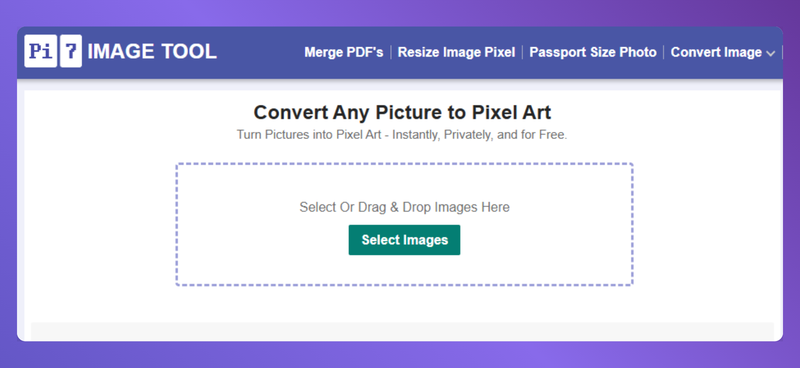
Pi7 Pixel Art Converter is a free web tool that lets you convert images into pixel art instantly. Instead of pure one-click picture-to-pixel conversion, it provides a few customization options to fit your needs.
You can adjust pixel block size to control how detailed or blocky the result looks, and tweak visual elements like color palettes, grayscale effects, grid lines, or edge outlines.
Key Features of Pi7 Pixel Art Converter
Pi7’s picture-to-pixel art converter is designed to keep things simple, while still offering a few useful features for basic pixel art creation:
- Runs entirely in your browser, so your images are processed locally without being uploaded to external servers, helping protect your privacy.
- Allows you to adjust the pixel block size (from 1 to 40), giving you control over how detailed or blocky the final result looks.
- Includes a grayscale option, making it easy to create monochrome pixel art with a single click.
- Supports grid lines and outlines, which help define shapes and enhance the overall pixel art appearance.
- Offers basic color palette options, allowing you to apply different color styles to your artwork.
Overall, Pi7 focuses on delivering a quick and accessible pixel art conversion experience without requiring complex settings or design skills.
Pros
- Easy to use, even for complete beginners.
- Free and accessible directly from your browser.
- No uploads required, which helps protect user privacy.
- Download pixel art result without watermark.
Cons
- Limited control over advanced details and pixel styling.
- No classic pixel style presets offered, such as Game Boy, Vintage, or NES 8-bit.
- Changes to the pixel block size are not always reflected instantly, and there can be a slight delay before the updated result is displayed.
- Ads on the website may occasionally interrupt the user experience.
Best Alternative to Pi7 Pixel Art Converter: PictoPixel.art
What Is PictoPixel.art?
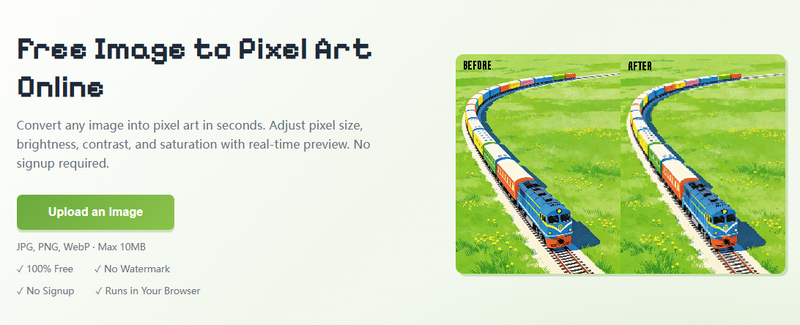
PictoPixel.art is a free website that instantly converts images into pixel art. It converts your photo into a grid of clean, visible pixel blocks, recreating the classic retro style often seen in games and digital illustrations.
Unlike traditional pixel art tools that require manual drawing or complicated editing, PictoPixel.art keeps the process fast and intuitive. Simply upload your image, adjust settings like pixel size, contrast, brightness, or presets, and your pixel art is ready in seconds.
It’s built for anyone who wants high-quality pixel art without dealing with complex controls.
Quick Comparison: Pi7 vs PictoPixel.art
| Feature | Pi7 Pixel Art Converter | PictoPixel.art |
|---|---|---|
| Conversion Type | Manual pixel conversion | Manual pixel conversion |
| Pixel Size Control | 1–40 | 1–64 (more flexible) |
| Brightness Adjustment | Yes | Yes |
| Contrast Adjustment | Yes | Yes |
| Saturation Adjustment | No | Yes |
| Color Count Control | No | Yes |
| Color Palette | Basic palettes | 2–256 color depth control |
| Style Presets | No | Vintage, Game Boy, NES, High Contrast |
| Real-Time Preview | Not fully real-time | Instant live preview |
| Output Quality | Good | Cleaner and more refined |
| User Experience | Simple but less responsive | Smooth and interactive |
| Ads | May interrupt experience | Clean interface |
| Privacy | Local processing | Local processing |
| Watermark | No | No |
| Best For | Quick, simple pixelation | Higher-quality pixel art with more control |
Key Features of PictoPixel.art
- Instantly converts images into pixel art with real-time preview.
- Flexible pixel size control, from fine detail to bold blocky styles.
- Built-in adjustments for brightness, contrast, and saturation.
- Supports color tuning with different levels of color depth.
- Offers multiple styles like Game Boy, NES 8-bit, Vintage, and High Contrast.
- Runs fully in your browser with no server upload, ensuring better privacy.
- No signup required, and all exports are watermark-free.
Turn Image into Pixel Art with PictoPixel
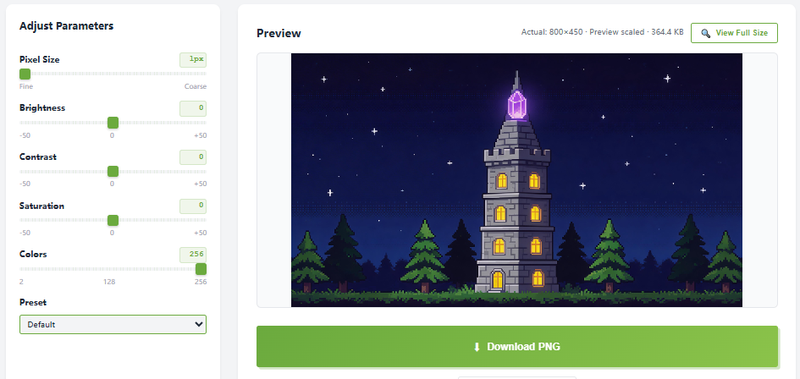
Brief Intro to PictoPixel’s Toolbar
Pixel Size (1–64): Controls how large each pixel block is. Lower values keep more detail; higher values create a bold, blocky retro look.
Brightness (-50 to 50): Adjusts overall lightness. Increase to brighten dark images; decrease for a darker, moodier effect.
Contrast (-50 to 50): Changes the difference between light and dark areas. Higher values make shapes stand out more; lower values create a softer look.
Saturation (-50 to 50): Controls color intensity. Increase for vivid colors; decrease for muted or near grayscale styles.
Colors (2–256): Sets how many colors are used. Fewer colors create a classic retro feel; more colors preserve detail and realism.
Style Presets: Applies predefined looks (e.g., Game Boy, NES 8-bit) by combining multiple settings automatically.
Simple Steps to Convert an Image into Pixel Art
- Step 1: Import your image into the editor (supports common formats like JPG and PNG).
- Step 2: Adjust the pixel size to define how detailed or blocky the final result looks.
- Step 3: Fine-tune the image using settings like brightness, contrast, or color intensity.
- Step 4: Apply a preset style if you want a specific retro look instantly.
- Step 5: Watch the result update live as you make changes. Once satisfied, export your pixel art in just one click.
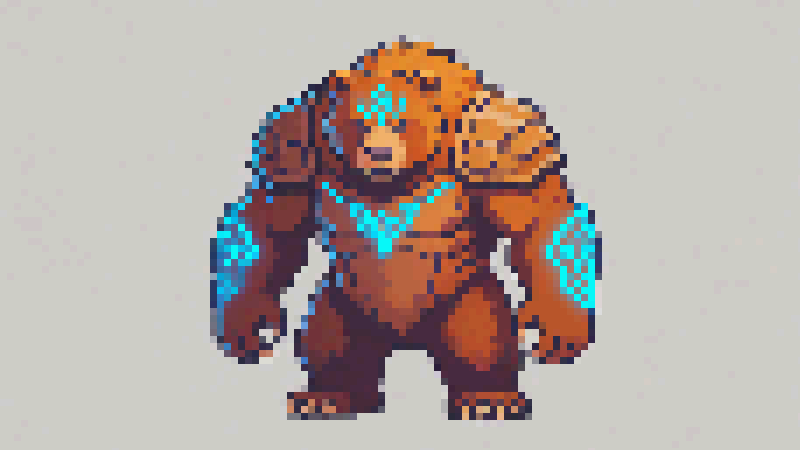
Why It’s the Best Pi7 Alternative
Compared to Pi7 Pixel Art Converter, PictoPixel.art offers a more refined and responsive experience:
- Real-time preview ensures every adjustment is immediately visible.
- More control over image tuning (brightness, contrast, saturation).
- Cleaner workflow with fewer interruptions or distractions.
- No watermark and no signup required for full access.
- Better balance between simplicity and customization.
While Pi7 is suitable for quick and basic conversions, PictoPixel.art gives users more control and a smoother overall experience without making the process complicated.
Image to Pixel Art Conversion by PictoPixel: Real Examples
To better understand how PictoPixel.art performs in real situations, here are a few practical examples of how different types of images transform into pixel art.
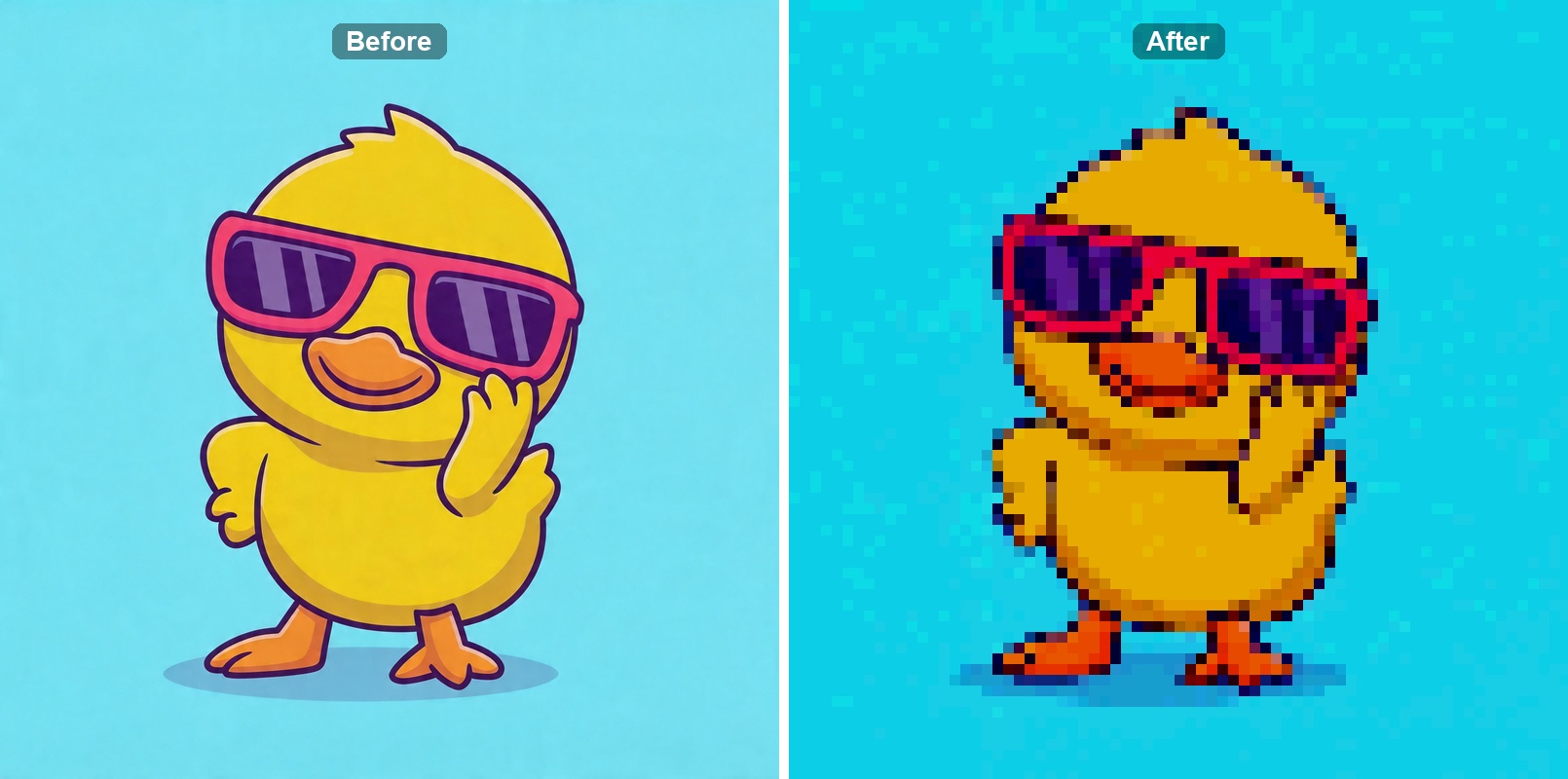
Case #1: Duck image to pixel
- Pixel Size: 11
- Brightness: -15
- Contrast: +25
- Saturation: +20
- Colors: 22
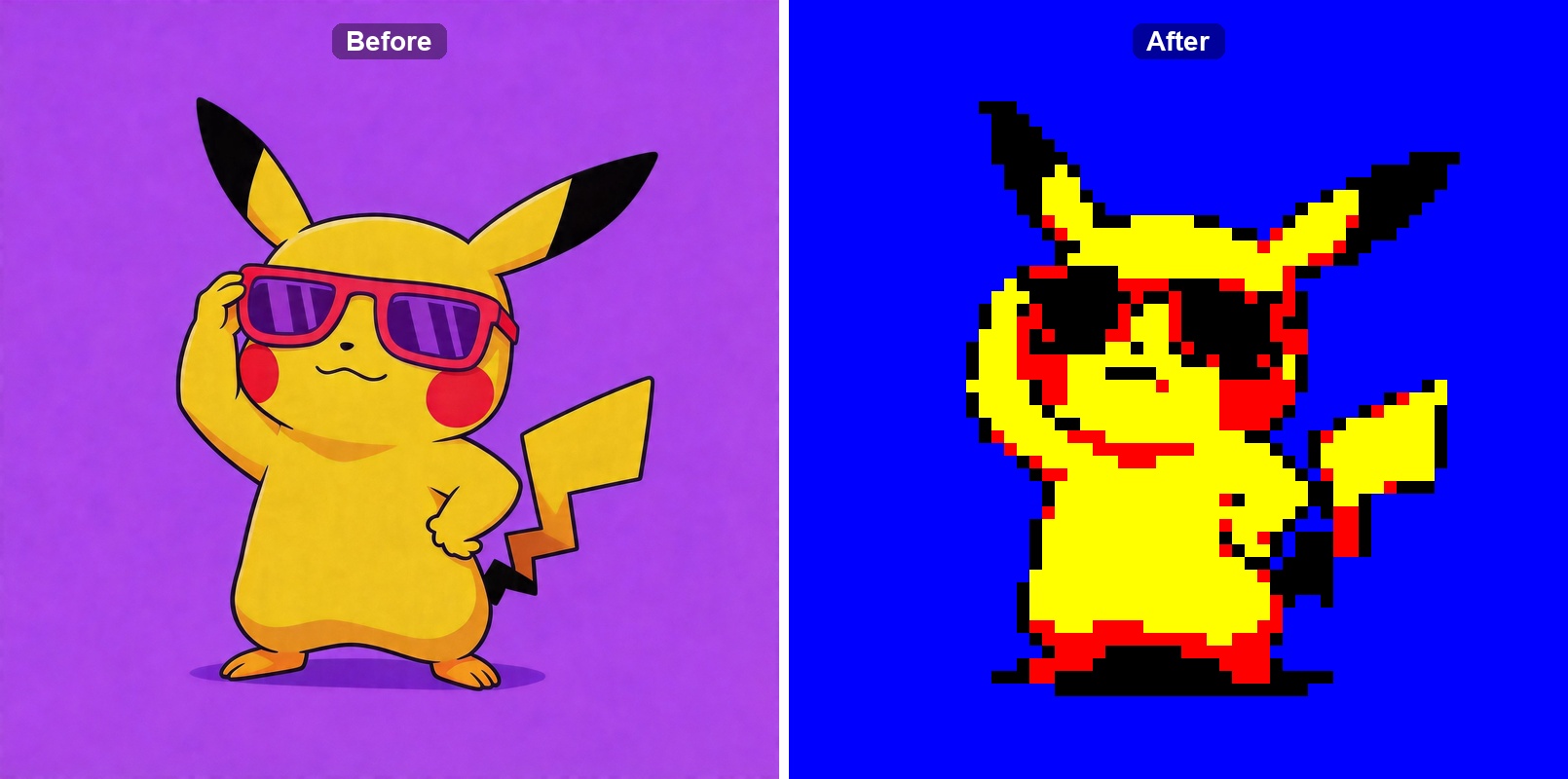
Case #2: Pikachu to pixel
- Pixel Size: 13
- Brightness: -20
- Contrast: +10
- Saturation: -10
- Colors: 2
- Preset: Game Boy Color
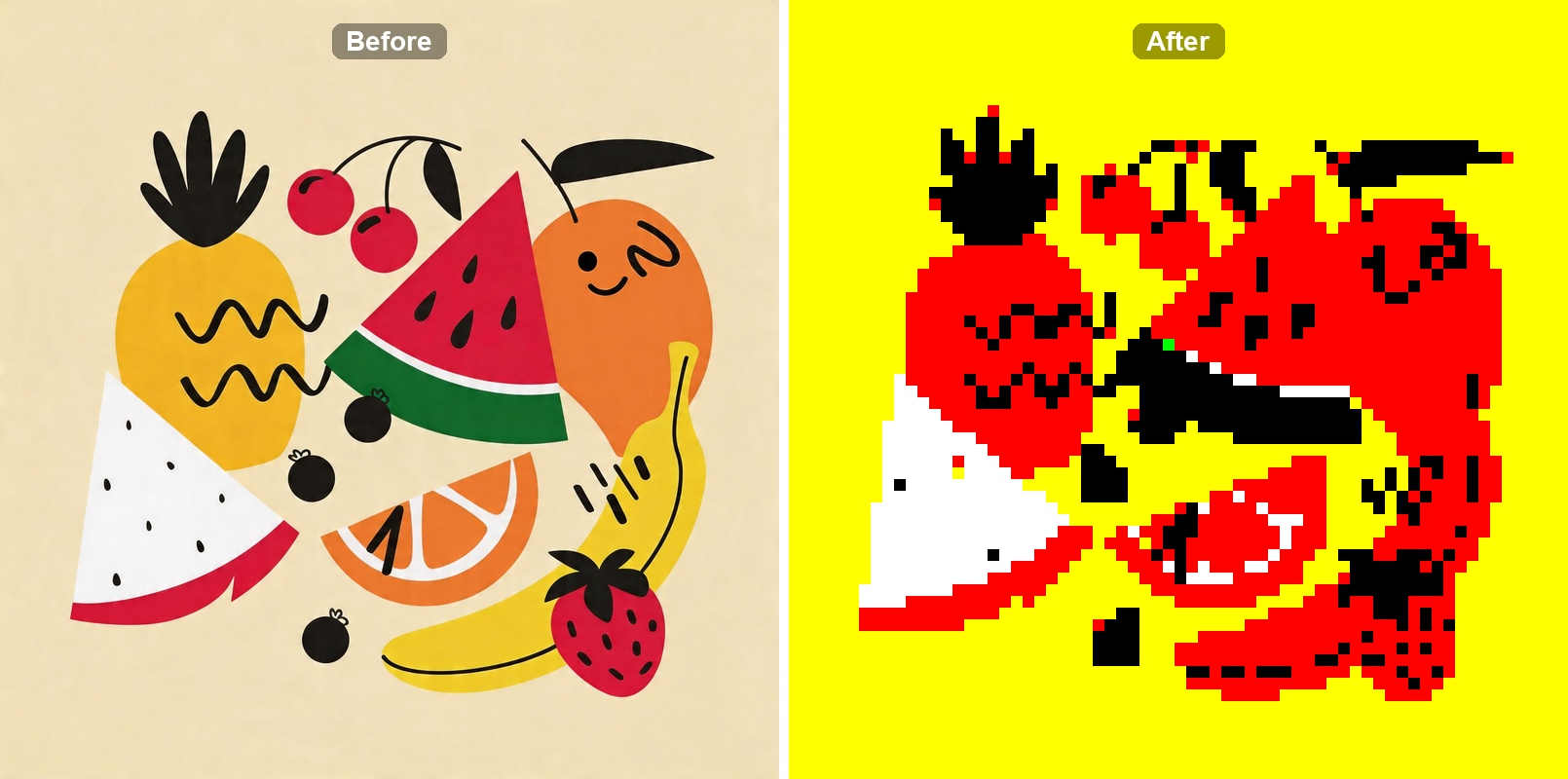
Case #3: Fruit illustration to pixel
- Pixel Size: 12
- Brightness: -35
- Contrast: +10
- Saturation: +10
- Colors: 2
- Preset: Game Boy Color
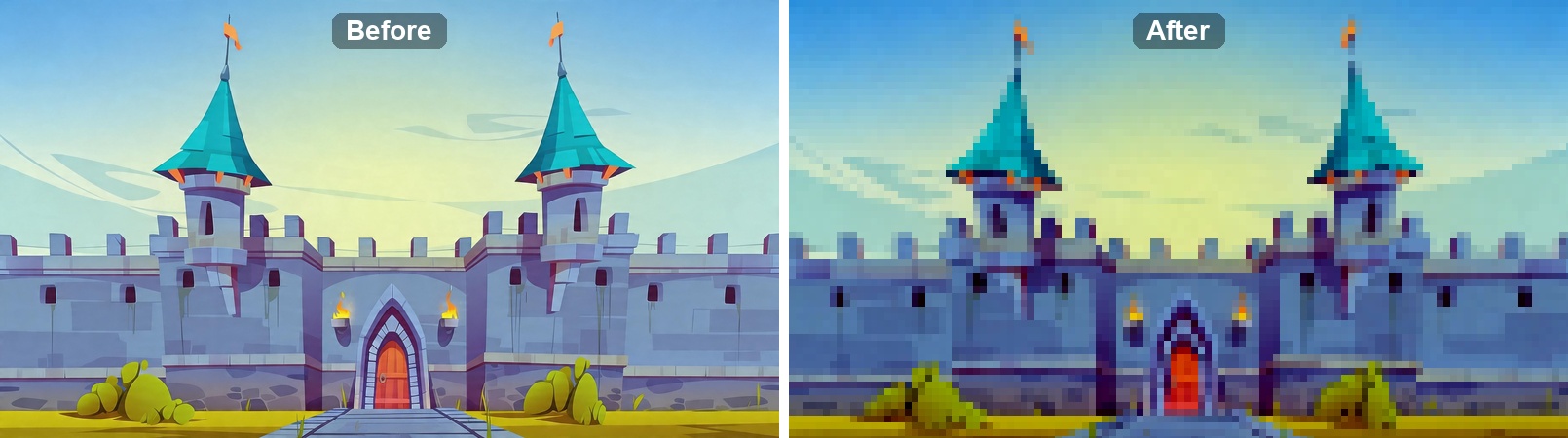
Case #4: Landscape to pixel
- Pixel Size: 7
- Brightness: -10
- Contrast: +20
- Saturation: +5
- Colors: 256
- Preset: NES 8-bit
Pi7 Pixel Art Converter Alternatives FAQs
Q1: Is Pi7 Pixel Art Converter free to use?
Yes, this tool is completely free. You can upload an image, convert it into pixel art, and download the result directly in your browser without creating an account.
Q2: How can I download pixel art without watermark?
Both Pi7 and PictoPixel.art allow you to export your pixel art without adding any watermark. The downloaded image maintains the same quality as the preview, making it ready for personal or project use right away.
Q3: Can I apply Game Boy Color style to my pixel art?
Yes. With PictoPixel.art, you can easily convert your image into pixel art and apply a retro look using the Presets dropdown. Simply choose Game Boy or Game Boy Color to instantly apply the style.
After selecting a preset, you can further fine-tune the result by adjusting settings like pixel size, contrast, saturation, and brightness. This gives you the flexibility to explore and customize the final look until it matches your preferred style.
Final Thoughts
Pi7 Pixel Art Converter is a simple and accessible tool for quick pixel art conversions. It works well if you just need a basic result without spending time on adjustments.
However, if you’re looking for more control, better visual quality, and a smoother editing experience, tools like PictoPixel.art offer a more complete solution. With real-time preview, flexible settings, and cleaner output, it’s easier to create pixel art that feels intentional rather than just pixelated.
If you want to see the difference for yourself, try converting your own image and experiment with different styles. Sometimes, the result speaks louder than any comparison.
Ready to create your own pixel art?