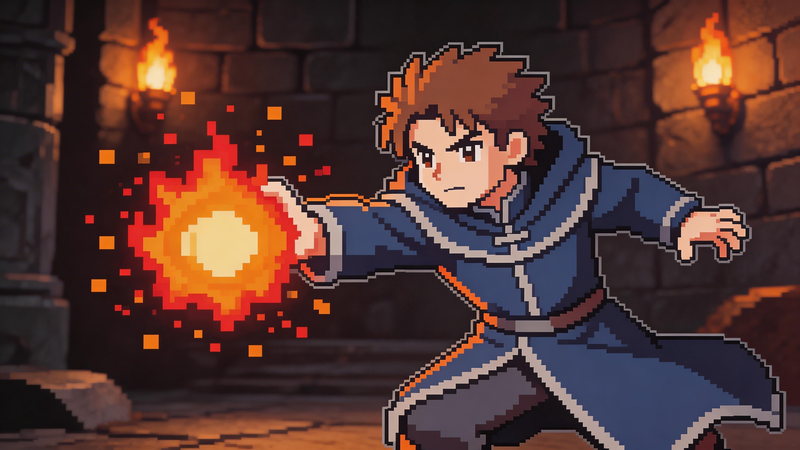
Pixel art looks simple, but anyone who has tried to create it knows the truth—it’s not that easy. Getting the proportions right, choosing the perfect colors, and placing each pixel carefully can take hours, even for experienced artists.
That’s why many people give up before they even start. You might love the look of cute pixel characters, retro game sprites, or aesthetic avatars—but feel stuck because you don’t have drawing skills.
In this article, I will share three smarter ways to create cute pixel art without touching a single pixel manually. Whether you want something quick, consistent, or a bit more creative, there’s a method that fits your needs.
Why Cute Pixel Art Is So Popular
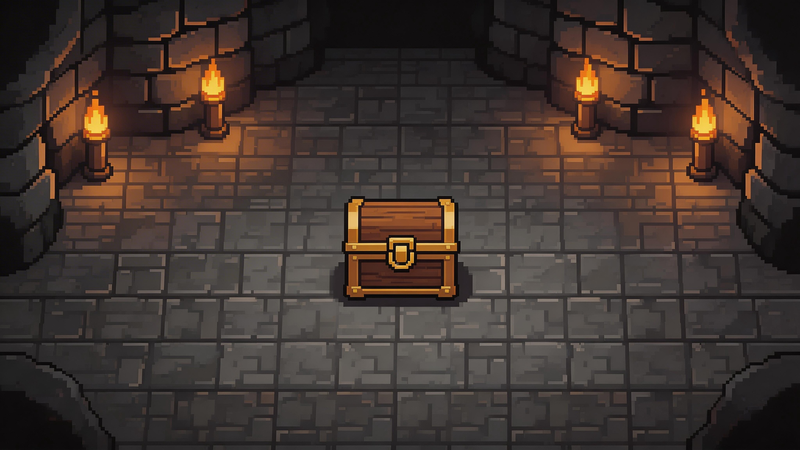
Cute pixel art is popular for one simple reason: it looks fun and feels nostalgic. Inspired by classic retro games, it brings a charming, playful vibe that people instantly love.
You’ll see it everywhere today:
- Profile pictures (PFPs)
- Indie games
- Stickers and social media content
It’s also clean and eye-catching. With fewer details and bold shapes, cute pixel art stands out easily.
But while it looks simple, creating pixel art from scratch can be tricky and time-consuming.
So how can you make cute pixel art without drawing skills? Let’s start with the easiest method.
Method 1: Use an AI Pixel Art Generator (Fast & Simple)
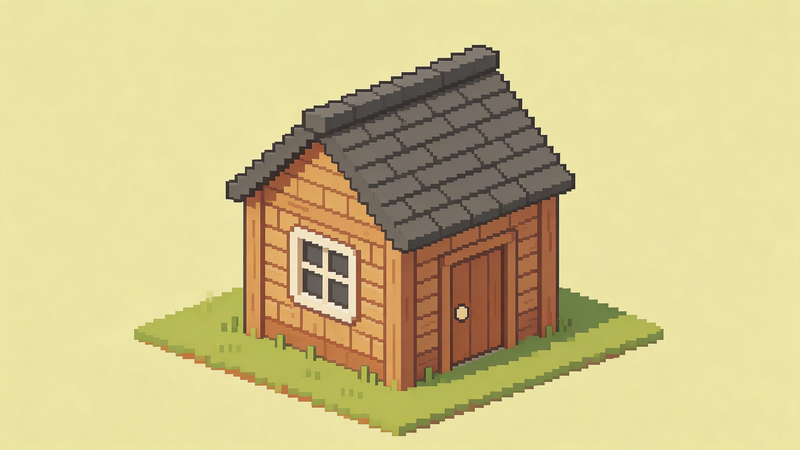
If you want a quick and creative way to make cute pixel art, using an AI pixel art generator is a great place to start. You don’t need any drawing skills—just upload an image or describe what you want, and the AI will generate it for you.
How it works
- Upload your photo (selfie, pet, object, etc.)
- Enter a simple prompt, such as:
- “turn this image into cute pixel art”
- “8-bit pixel style, chibi, soft colors”
- Click generate and download your result
If you don’t have an image, you can also create pixel art from scratch. Simply describe your idea in detail—like the subject, background, colors, or pixel size—and let the AI bring it to life.
Why people like this method
- Very beginner-friendly
- Great for exploring different styles
- No manual editing required
However, AI tools do have some limitations. Results can vary each time, and sometimes the output may not look like clean, traditional pixel art. You might need to try a few prompts to get the exact style you want.
Method 2: Convert an Image into Cute Pixel Art with pictopixel.art
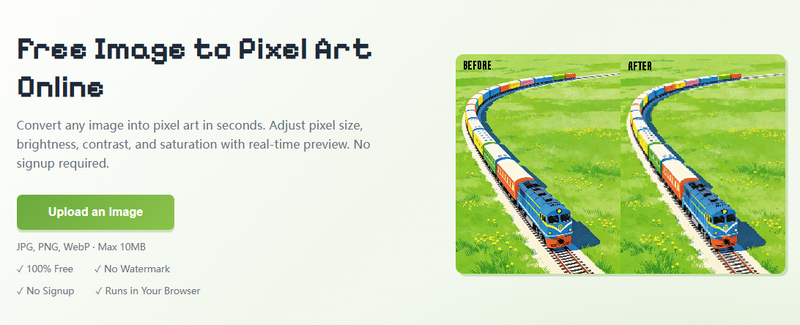
If you want clean, consistent, and cute pixel art without any drawing skills, pictopixel.art is the perfect tool. It’s fast, beginner-friendly, and produces classic pixel-style results every time.
What is pictopixel.art?
pictopixel.art is a free image to pixel converter that transforms your regular photos into pixel art. Inspired by the blocky, colorful aesthetics of classic video games from the 80s and 90s, this tool makes your images look cute, retro, and highly shareable. With a simple interface, smooth workflow, and flexible customization features, PicToPixel can help you create cute pixel art without any drawing skills. Whether you want to make mario pixel art, Yoshi 8-bit art, or a furry pixel image, this tool can do it instantly.
Key Features
- Instant Pixel Conversion – Transform any image into pixel art in seconds.
- Adjustable Pixel Size – Choose how detailed or blocky your pixel art looks.
- Brightness, Contrast & Color Tweaks – Fine-tune the image for the perfect look.
- Color Count Control – Reduce colors for a classic retro vibe.
- Download as PNG – Ready to use immediately for social media, websites, or printing.
- Live Preview – See changes instantly as you adjust settings.
How to Use pictopixel.art
Follow these simple steps to turn your photo into cute pixel art:
Step 1: Open pictopixel.art
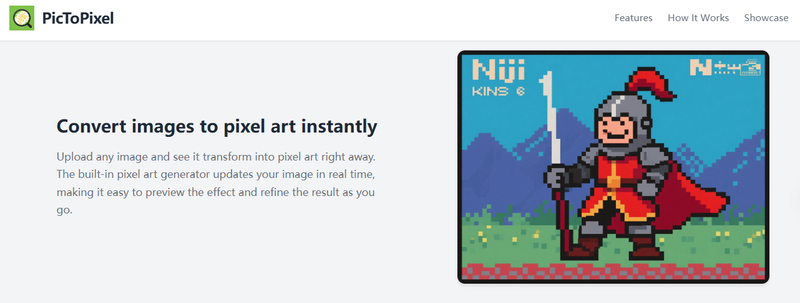
Go to the website in your browser. No signup or installation is required—just start creating.
Step 2: Upload the Right Photo
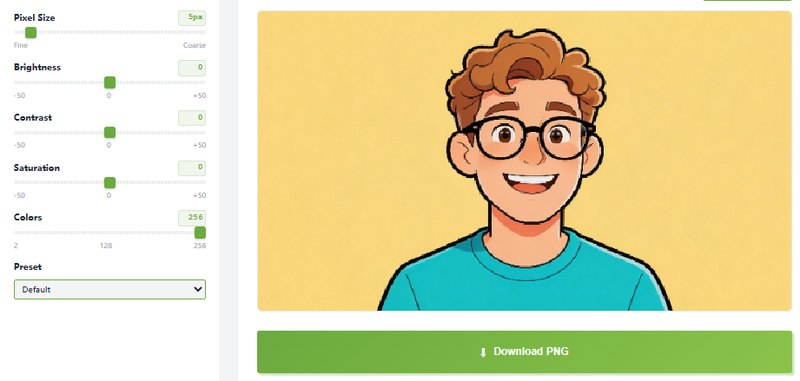
The quality of your input affects the final result. For the best output, choose:
- Simple subjects – faces, pets, icons, or logos
- Strong contrast – clear light and dark areas
- Clean composition – avoid busy backgrounds
- Good quality – higher resolution images work best
Portraits and simple objects usually convert most smoothly, though more complex images can also work with some adjustments.
Step 3: Set the Pixel Level
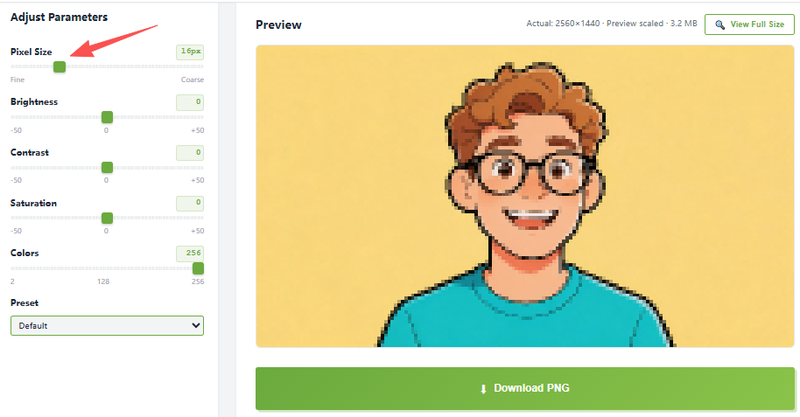
Pixel size controls the style:
- Smaller pixels → more detail, subtle effect
- Larger pixels → chunkier, retro pixel look
Use the live preview to adjust the size until it looks just right. Faces often need more detail, while logos and icons can handle bigger blocks.
Step 4: Adjust the Details
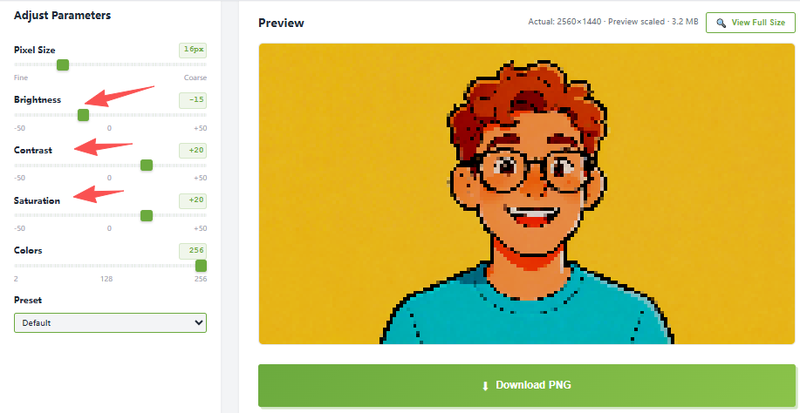
Refine your pixel art using these simple tweaks:
- Brightness – lighten or darken the image
- Contrast – make shapes stand out more
- Saturation – control how vivid the colors appear
- Color count – fewer colors create a classic retro vibe
Small adjustments usually give the best results—don’t overcomplicate it.
Step 5: Save Your Pixel Art
When satisfied, download your pixel art as a PNG file. It’s ready to use immediately on social media, websites, or even in prints. Pixel art scales well, so your image will look great at different sizes.
With pictopixel.art, creating cute pixel art has never been easier. It’s fast, reliable, and perfect for anyone who wants professional-looking pixel results without spending hours drawing.
Real Examples: Cute Pixel Art Made with pictopixel.art
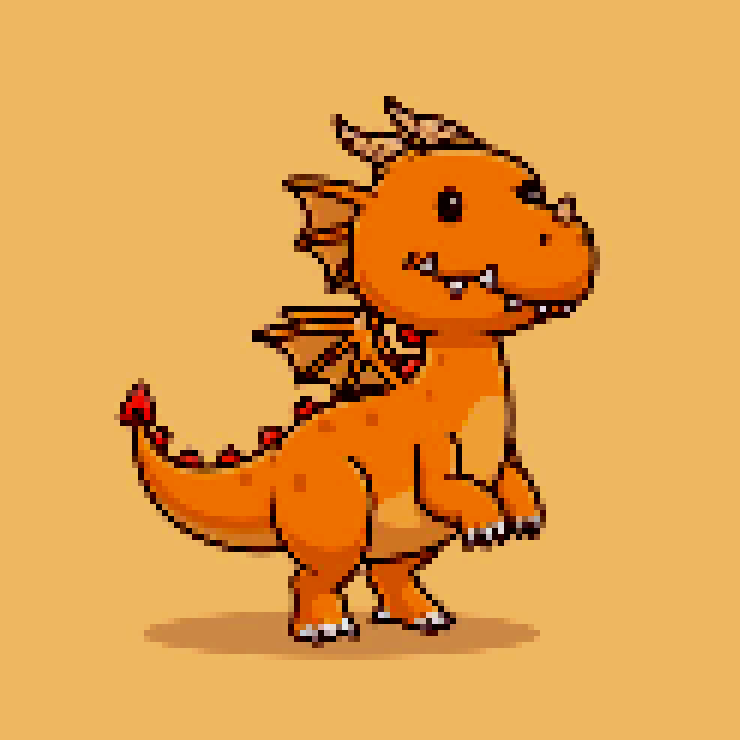
Case 1: Baby Dragon Pixel Art
Original Image:
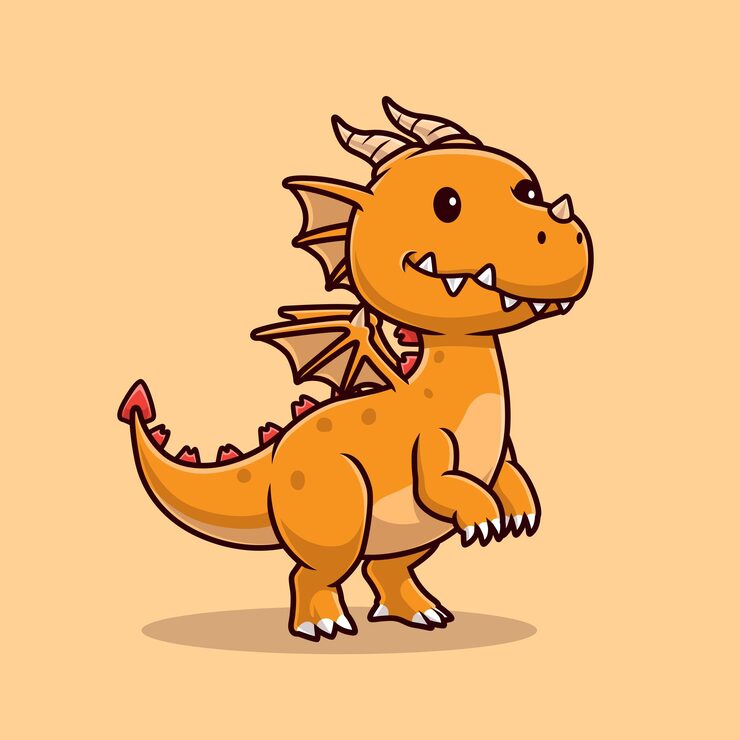
Settings Used:
- Pixel Size: +6
- Contrast: -10
- Brightness: +10
- Color Count: 90
Result:
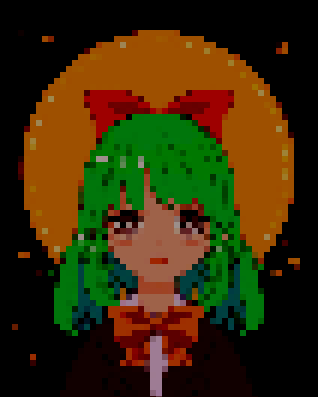
Case 2: Chibi Anime Girl Pixel Art
Original Image:
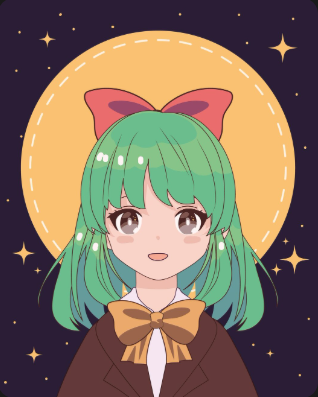
Settings Used:
- Pixel Size: +6
- Contrast: -50
- Brightness: +10
- Color Count: 256
Result:
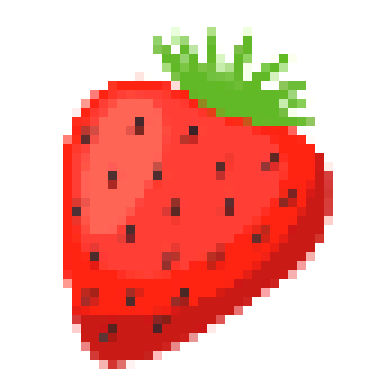
Case 3: Strawberry Pixel Art
Original Image:
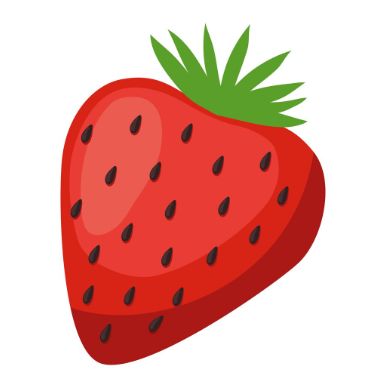
Settings Used:
- Pixel Size: +9
- Contrast: +5
- Brightness: +10
- Color Count: 59
Result:
Method 3: Use Pixel Art Templates or Grid Tools (Semi-Manual but Easy)
If you want a bit more control while still avoiding full drawing from scratch, using pixel art templates or grid tools is a great option. This method is slightly more hands-on, but still beginner-friendly and doesn’t require real drawing skills.
How it works
Instead of creating pixel art entirely from nothing, you start with a template or a grid and build on top of it.
There are two common approaches:
- Use ready-made templates (like pixel avatars, characters, or icons)
- Overlay a grid on an image and simplify it into pixel blocks
How to get started
- Choose a simple pixel template or open a pixel grid tool
- Import your image (optional) or start with a base design
- Fill in colors block by block using the grid
- Adjust details like eyes, outlines, or colors to make it look cuter
- Export your final pixel art
Why people like this method
- More control over the final look
- Adds a “handmade” and personal touch
- Great for customizing characters or avatars
Limitations to keep in mind
- Takes more time than automatic tools
- Requires some patience and basic color sense
- Not as fast as AI or one-click converters
Which Method Should I Choose to Create Cute Pixel Art
Choosing the right method depends on what you care about most—speed, control, or creativity.
Here’s a quick comparison to help you decide:
| Method | Difficulty | Speed | Control | Best For |
|---|---|---|---|---|
| AI Pixel Generator | Easy | Medium | Low | Creative styles & experimenting |
| pictopixel.art | Very Easy | Fast | High | Beginners & consistent results |
| Templates / Grid Tools | Medium | Slow | High | Custom designs & personalization |
So, which one is best?
- If you want fast and clean results:
Go with pictopixel.art. It’s the easiest way to turn any image into cute pixel art with consistent quality. - If you want to explore different styles:
Try an AI pixel art generator. It’s great for creativity, but results may vary. - If you want more control and a handmade feel:
Use templates or grid tools. It takes more time, but gives you a unique, personal touch.
Final Thoughts
For most beginners, pictopixel.art is the best choice. It offers the perfect balance of simplicity, speed, and high-quality results without any learning curve.
If your goal is to create cute pixel art quickly and reliably, this is the method you’ll likely come back to again and again.
Ready to create your own pixel art?