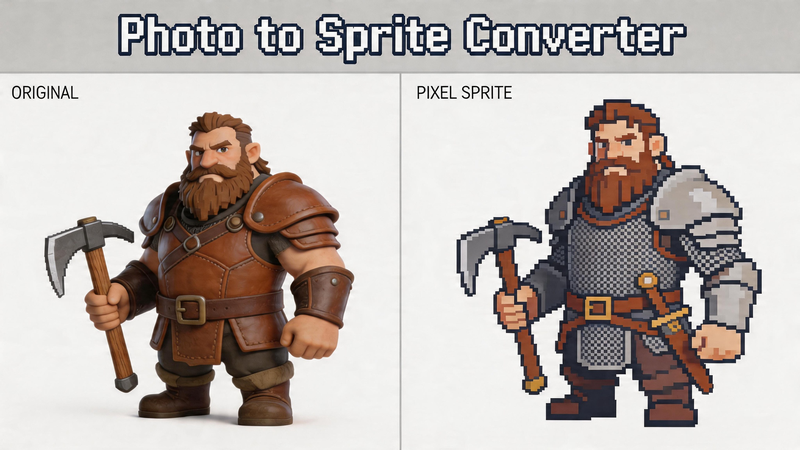
Have you ever wanted to turn a photo into a game character? That is exactly what a photo to sprite converter does. Instead of drawing pixel art from scratch, you can take any image—your selfie, a pet photo, or even a logo—and convert it into a clean, retro-style sprite in seconds.
Even better, you can do it online using tools like pictopixel.art, without installing anything or learning pixel art skills.
Photo to Sprite vs Photo to Pixel Art
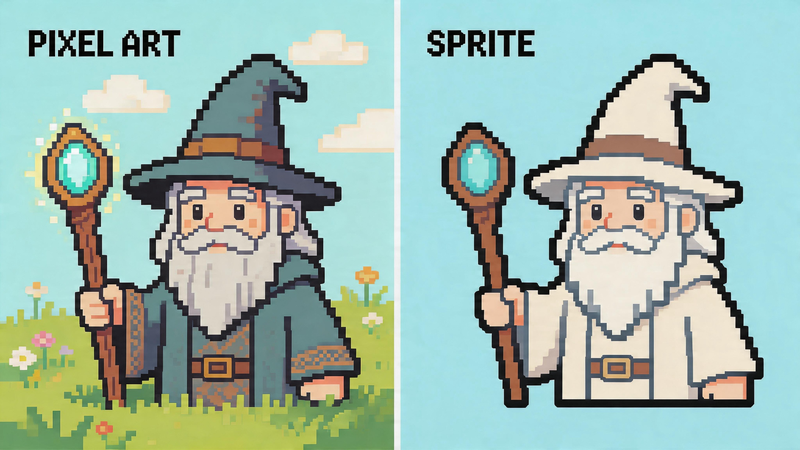
These two terms are easy to confuse, but they focus on different things.
- Photo to pixel art is about the visual style. It turns an image into a blocky, retro look.
- Photo to sprite is about the purpose. It creates an image you can actually use in a game.
In simple terms:
- Pixel art is how it looks.
- Sprite is how it is used.
Most sprites are made in pixel art style, but not all pixel art is meant to be used as a sprite. If you are creating game assets, "sprite" is the more accurate term. If you just want a retro-style image, "pixel art" works better.
Best Photo to Sprite Converter
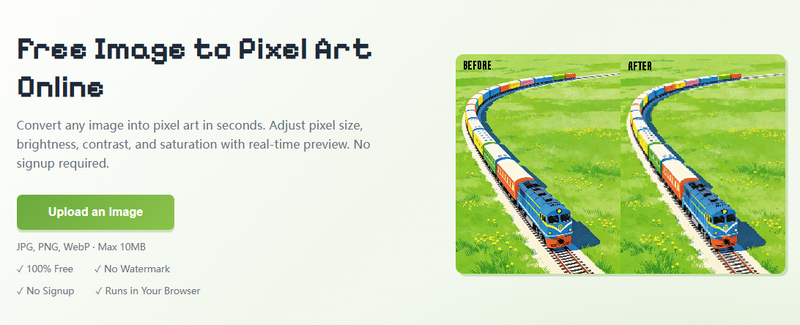
If you are looking for the best photo to sprite converter, the key is finding a tool that balances simplicity with control. You want something fast to use, but also flexible enough to create clean, game-ready results.
That is where pictopixel.art stands out. Unlike many basic photo to pixel art tools, pictopixel.art is not just about adding a pixel effect. It gives you the ability to shape your image into something that actually works as a sprite.
You can control pixel size, limit colors, and adjust contrast—all of which are essential for creating clear and readable game assets. Whether you are creating a simple avatar or a full game character, pictopixel.art provides everything you need in one place.
How to Convert a Photo to a Sprite
Turning a photo into a sprite is easier than it sounds. With a tool like pictopixel.art, you can do it in just a few steps.
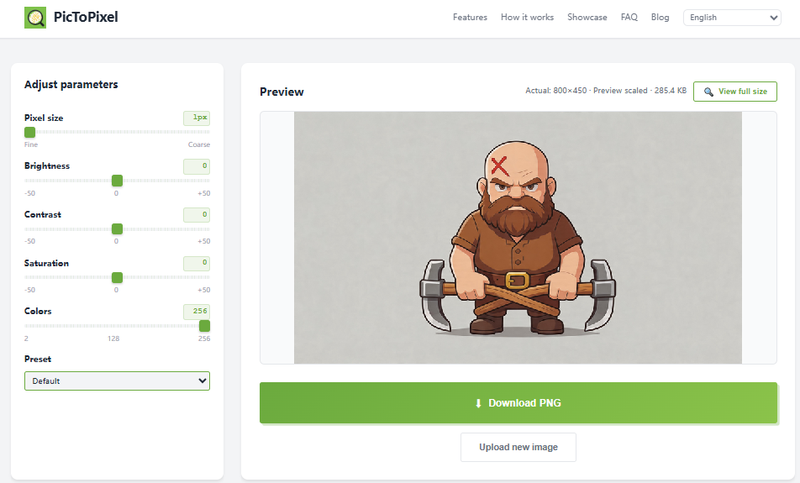
1. Upload Your Photo
Choose an image from your device. For best results, pick a photo with a clear subject, such as a person, pet, logo, or simple object. If you want to create a sprite, simpler images work better. Clean backgrounds, strong shapes, and good lighting help your final result look clear and recognizable at small sizes.
2. Adjust the Settings
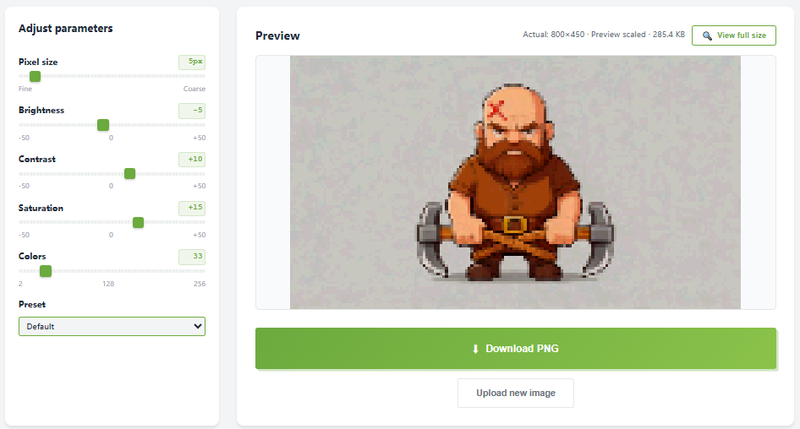
Now you can shape your image into a proper sprite.
Pixel size: Smaller values keep more detail. Larger values create a stronger blocky effect. For most sprites, a medium value works best.
Colors: Fewer colors give a more classic game look. More colors keep the image closer to the original.
Contrast and brightness: Increasing contrast helps shapes stand out, which is important for sprites. You can adjust everything in real time, so it is easy to experiment and find what looks right.
3. Apply a Preset (Optional)
If you want faster results, you can use presets. Each preset applies a combination of settings to create a specific style, such as:
- Retro 8-bit
- Game Boy-style
- High contrast
This is a quick way to make your image look like it belongs in a game, without adjusting every detail manually.
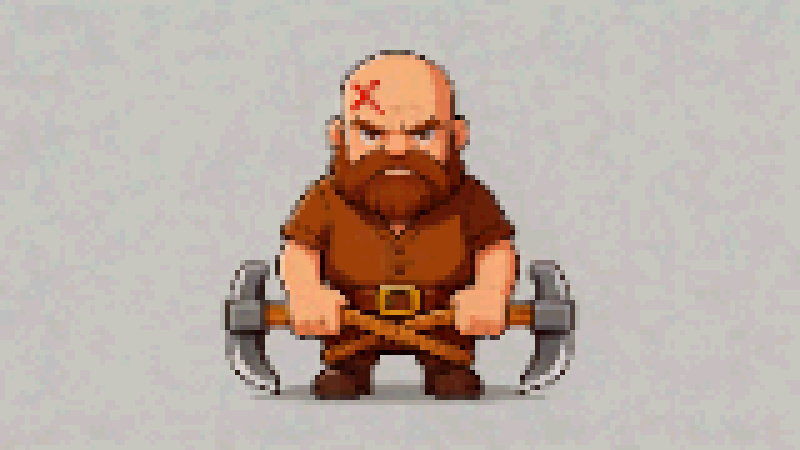
Photo to Sprite: Real Examples
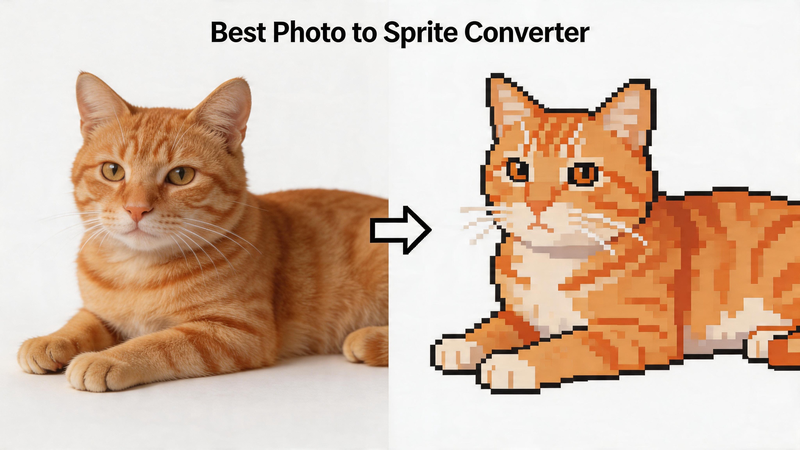
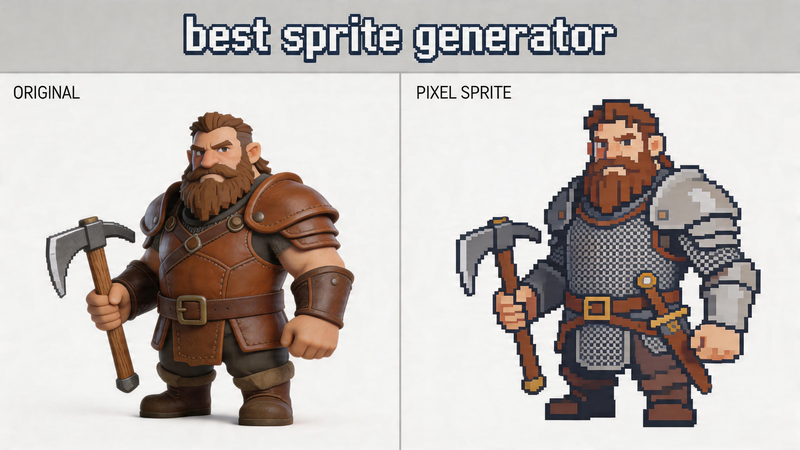
Here are a few real examples of turning photos into sprites using pictopixel.art. Each image starts as a regular photo and is converted into a clean, game-style sprite.
Portrait to pixel sprite
A simple portrait works well as a sprite because the subject is clear and easy to recognize. After conversion, the image becomes a clean pixel character that can be used as an avatar or game asset.
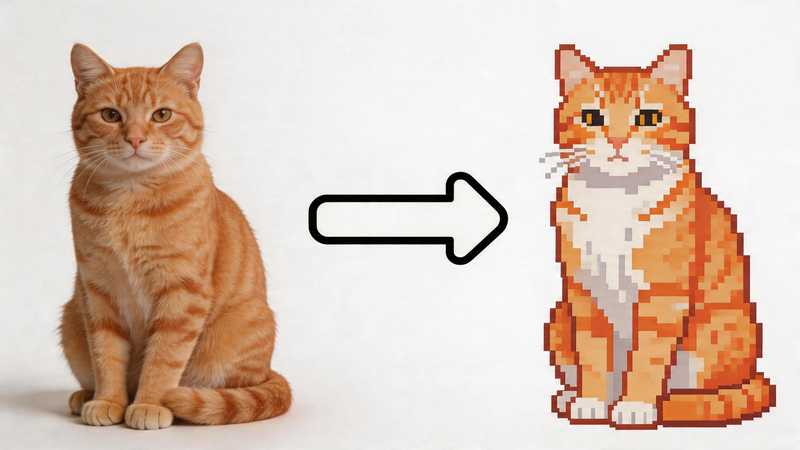
Pet avatar to pixel sprite
Pet photos are perfect for sprite creation. The strong shapes and colors make them easy to convert into cute, stylized pixel characters.
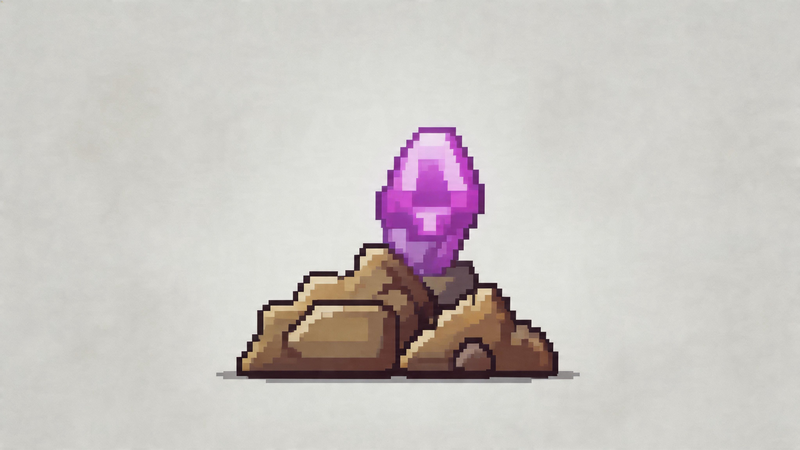
Object to pixel sprite
Simple objects or logos often produce the best sprite results. With fewer details, the final image looks sharp, bold, and highly readable even at small sizes.
Why pictopixel.art Works Well as a Sprite Converter
There are many tools that can turn images into pixel art, but not all of them are suitable for creating sprites. pictopixel.art stands out because it gives you the control and simplicity needed to turn a photo into something that actually works in a game.
Designed for clear, readable results
Sprites need to be easy to recognize, even at small sizes. pictopixel.art lets you adjust pixel size, colors, and contrast so your image stays clear instead of becoming messy or blurry.
Real-time preview for faster workflow
As you change any setting, you see the result instantly. This makes it much easier to fine-tune your image and quickly find a version that looks right as a sprite.
Flexible pixel and color control
You can control:
- Pixel size (from detailed to highly blocky)
- Color count (from simple retro palettes to richer styles)
This flexibility is important because different sprites need different levels of detail.
Built-in presets for game styles
With presets like 8-bit and Game Boy-style, you can instantly give your image a classic game look. These presets are especially useful if you want to create sprites quickly without adjusting every setting manually.
No setup, no friction
Everything runs in your browser. No downloads, no account, no setup. You can go from photo to sprite in seconds, which makes it ideal for quick experiments or fast content creation.
FAQ
What is a photo to sprite converter?
A photo to sprite converter is a tool that turns a regular image into a simplified, pixel-style graphic that can be used in games. Unlike basic pixel filters, it focuses on making the image clear and readable at small sizes, which is essential for game assets.
Can I use any photo to create a sprite?
Yes, but some images work better than others. Photos with a clear subject, simple background, and strong lighting produce the best results. Complex or cluttered images may lose detail when converted into a small sprite.
What size should a sprite be?
Common sprite sizes include 16×16, 32×32, and 64×64 pixels. Smaller sizes are more retro and lightweight, while larger sizes allow for more detail. The best size depends on how you plan to use the sprite in your project.
Is pictopixel.art free to use?
Yes, pictopixel.art can convert images into pixel-style sprites directly in your browser without any cost. You can create free pixel sprites on this website whenever you need them.
Conclusion
A photo to sprite converter makes it easy to turn everyday images into game-ready pixel assets in just a few clicks. Instead of spending hours drawing sprites manually, you can quickly transform a photo into a clean, retro-style character or object and start using it in your projects right away.
With tools like pictopixel.art, the process becomes even simpler. You can upload an image, adjust a few settings, or apply a preset, and instantly see your photo turn into a pixel-perfect sprite.
Ready to turn your photo into a sprite?