Looking for the best way to turn your images into pixel art? With so many tools available, it’s not always clear which one to choose.
Some tools focus on speed and simplicity, while others offer advanced AI features and deeper customization. If you’ve come across both Pictopixel and PixelMe, you might be wondering which one actually fits your needs.
In this guide, we’ll compare Pictopixel vs PixelMe side by side, so you can quickly understand the differences and choose the right tool for your projects.
What Is Pictopixel.art
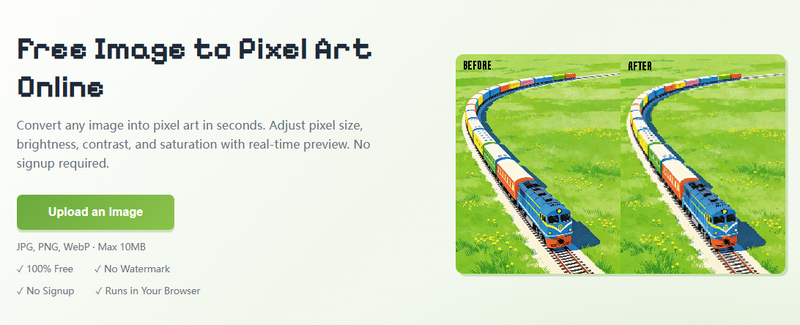
Pictopixel is a web-based image to pixel art converter focused on speed, simplicity, and accessibility. It’s designed for users who want to create pixel art without dealing with complex software or a steep learning curve.
The tool emphasizes a clean, intuitive interface and provides real-time preview, allowing users to see instant results as they adjust settings. Instead of overwhelming users with advanced editing features, it focuses on essential controls like pixel size, color adjustments, and preset styles that cover most common needs.
Because of this streamlined approach, Pictopixel delivers consistent and predictable results. It’s especially useful for quick projects like social media graphics, avatars, or simple creative experiments where efficiency matters more than deep customization.
What Is PixelMe?
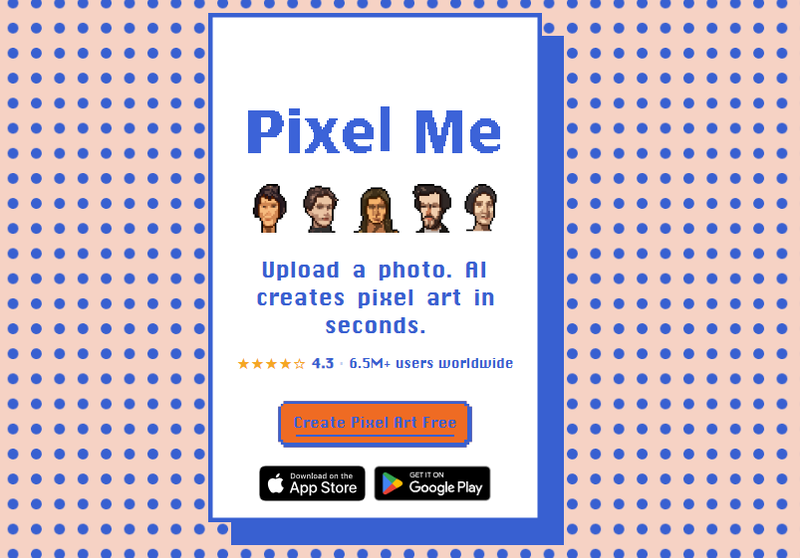
PixelMe is an AI-powered pixel art generator designed to create more stylized and customizable results. It uses artificial intelligence to analyze images, especially portraits, and turn them into pixel art with a more dynamic and artistic look.
In addition to AI generation, PixelMe includes advanced editing features such as pixel-level adjustments. This gives users the ability to refine details manually, making it a strong choice for those who want greater control over their final image.
PixelMe is available on multiple platforms, including web and mobile apps, which makes it convenient for users who prefer working across different devices.
How to Use PictoPixel.art
Step 1: Upload an image
Go to PictoPixel.art in your browser. Select and upload the photo you want to convert into pixel art.
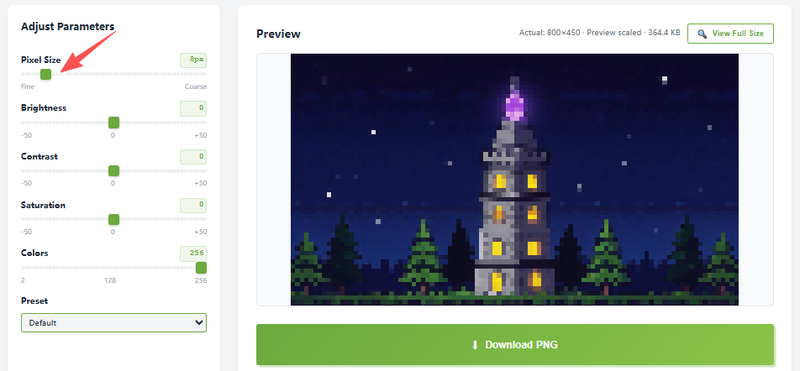
Step 2: Adjust Pixel Size
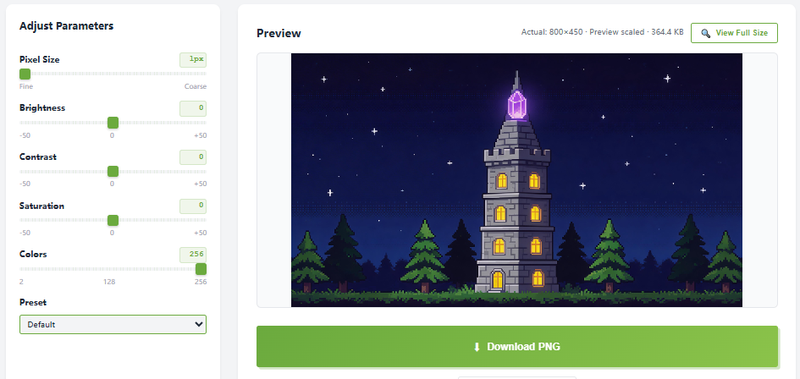
Change the pixel size (from 1–64px) to control the level of detail. You can drag the slider left or right to decrease or increase the value. Smaller values keep more detail, while larger values create a more blocky, retro look.
Step 3: Fine-Tune the Settings
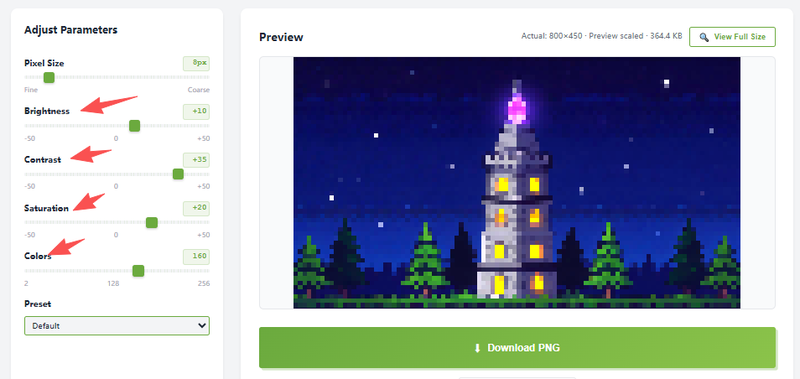
Adjust brightness, contrast, saturation, and colors if needed. Drag the sliders left to reduce the effect or right to enhance it until you get the look you want. You can also try preset styles for quick results.
Step 4: Preview and Download
Check the real-time changes to make sure the image looks the way you want. Once satisfied, download your pixel art in high-quality.

How to Use PixelMe
Step 1: Upload your photo
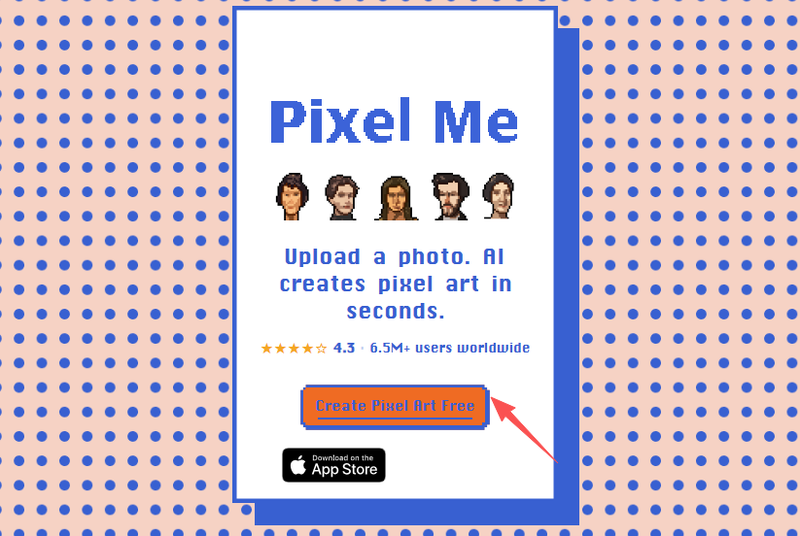
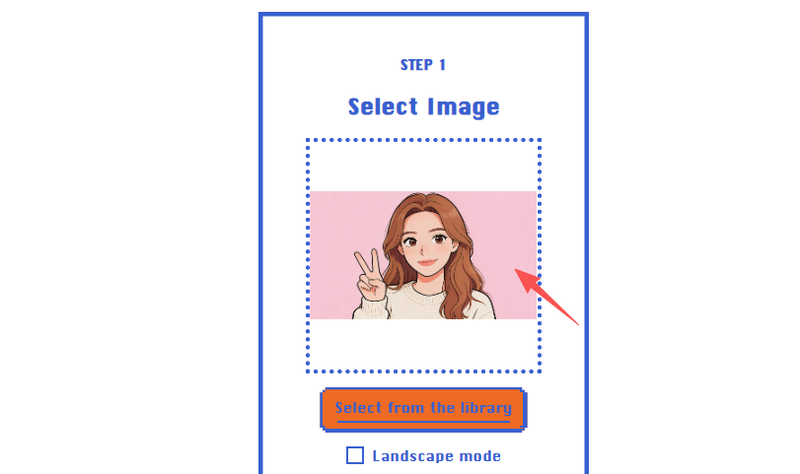
Visit the PixelMe website or open the app on your device. Click on “Create Pixel Art Free” and select an image from the library. Choose a photo, preferably a portrait or clear subject, for best results.
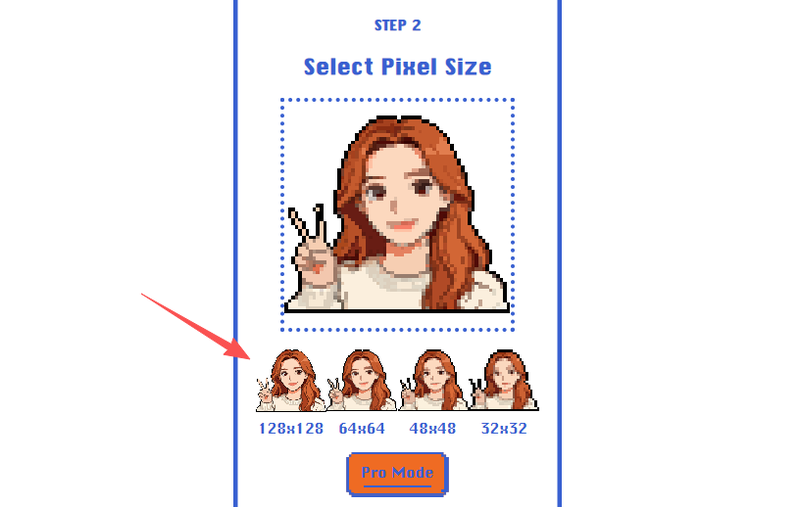
Step 2: Select the Pixel Size
Select from the available size options: 32×32, 48×48, 64×64, or 128×128. Smaller sizes create a simpler, more retro look, while larger sizes preserve more detail.
Step 3: Generate Pixel Art with AI
Let the tool process your image and automatically create a pixel art version.
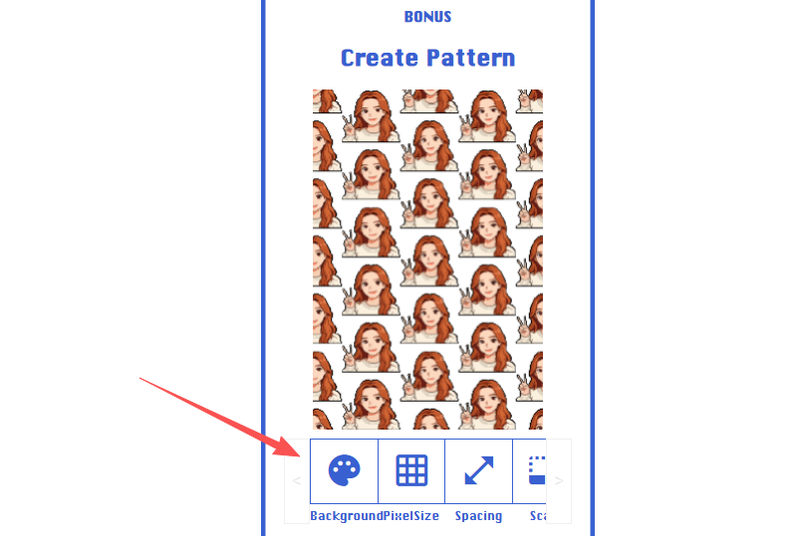
Step 4: Create Pixel Pattern (Optional)
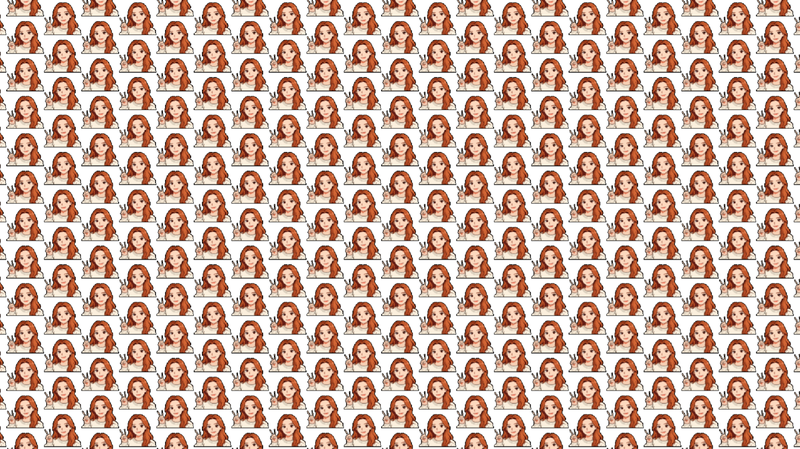
You can choose to generate a pixel pattern from your artwork. This feature repeats your pixel art subject across a canvas, creating a pattern made up of multiple copies of the same design.
Step 5: Export Your Image
Once the single pixel art or the pattern pixel work is created. You can press and hold the result to download the final pixel art.
Real Use Cases: Pictopixel vs PixelMe
To better understand the real differences between these two tools, let’s look at how they perform in practical scenarios. Each case includes the final result, the settings used, and a quick breakdown of what works best.
Case 1: Pixel Art Logo
Original Image
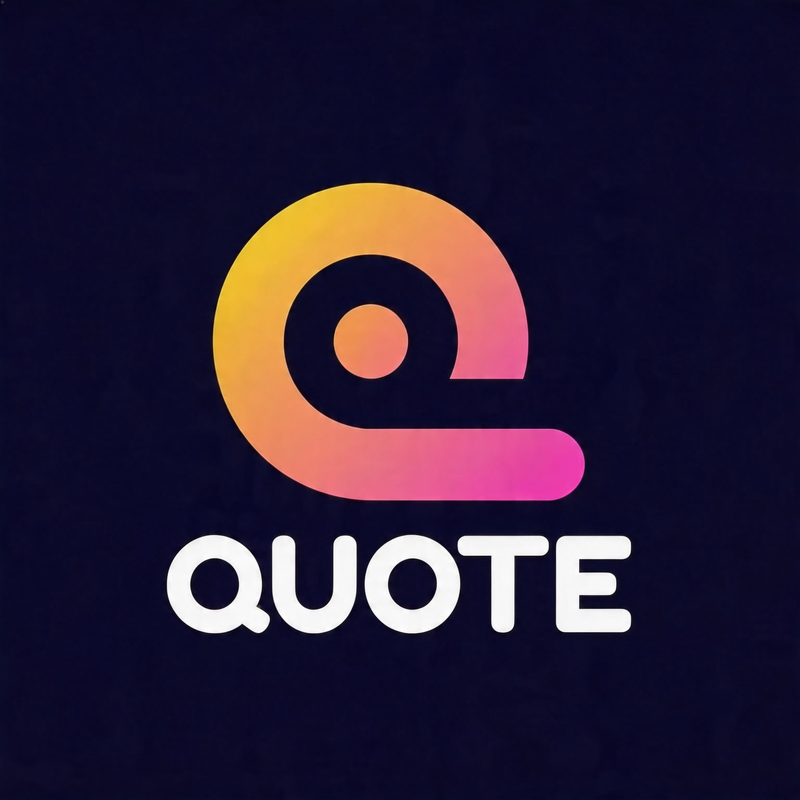
Pixel art logo by PictoPixel
- Pixel Size: 8
- Contrast: 40
- Brightness: 5
- Saturation: 10
- Colors: 256
Processed Image
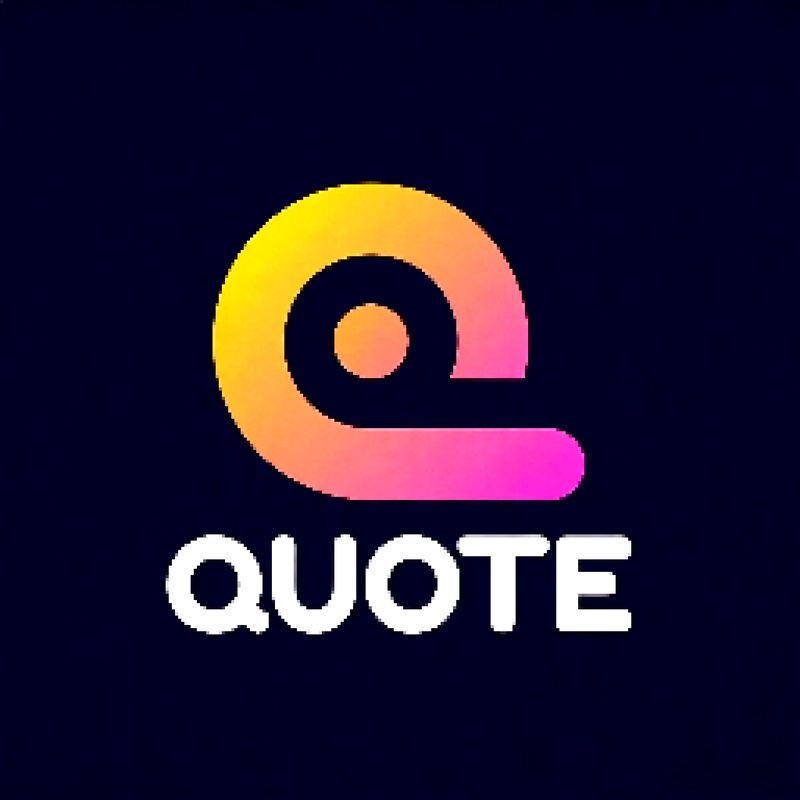
Pixel art logo by PixelMe
- Pixel Size: 128 x128
- Background Color: Orange
Generated Image
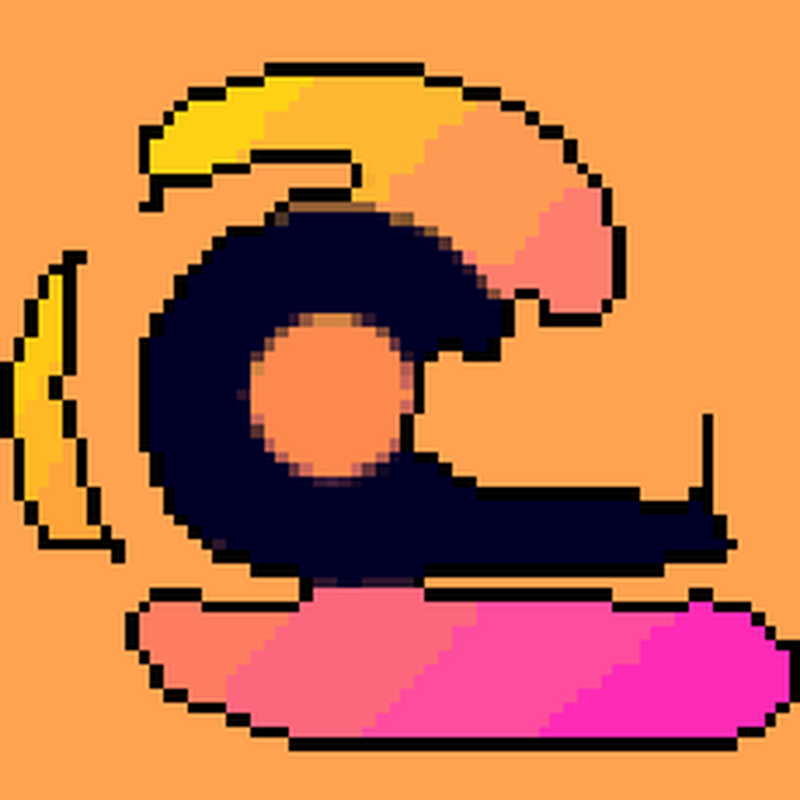
Case 2: Anime Avatar in Pixel Style
Original Image
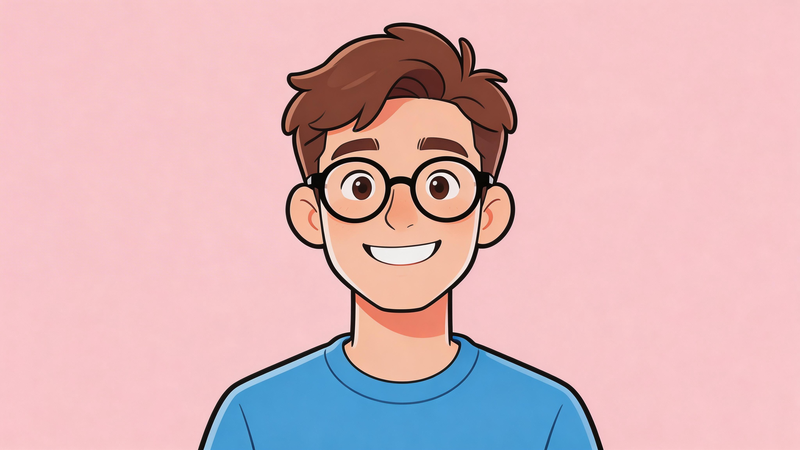
Pixel art logo by PictoPixel
- Pixel Size: 17
- Contrast: 15
- Brightness: -15
- Saturation: 20
Processed Image

Pixel art logo by PixelMe
- Pixel Size: 64 x 64
- Background Color: light purple
Generated Image

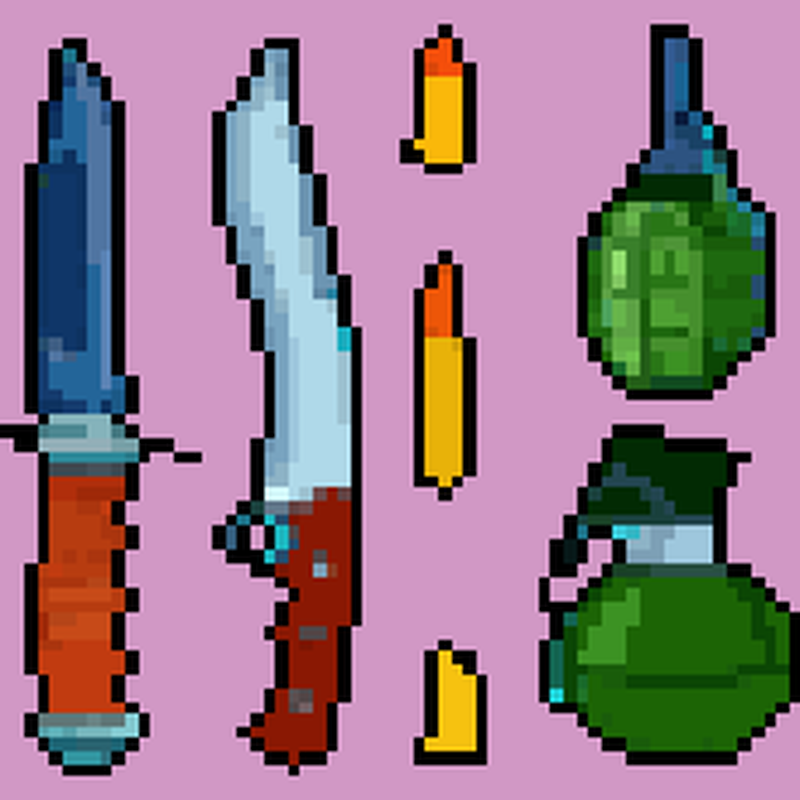
Case 3: Game Weapon
Original Image
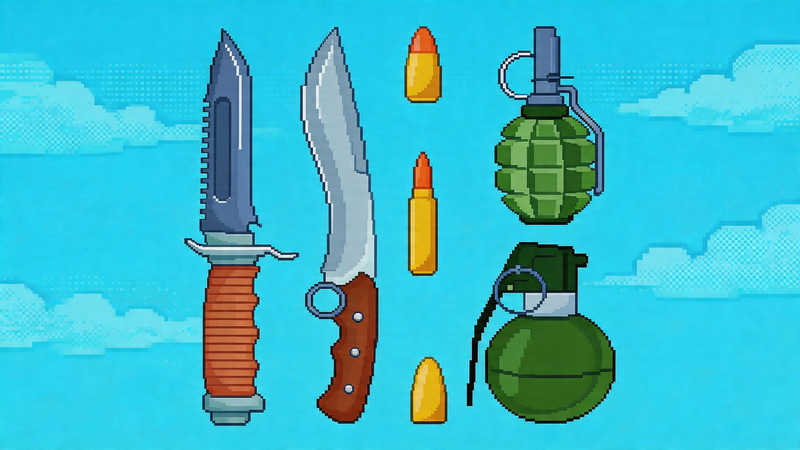
Pixel sword by PictoPixel
- Pixel Size: 4
- Contrast: 5
- Brightness: 0
- Saturation: -5
Processed Image
Pixel weapon by PixelMe
- Pixel Size: 64 x 64
- Background Color: purple
Generated Image
Feature-by-Feature Comparison
Ease of Use
Pictopixel is designed with simplicity in mind. The interface is clean, intuitive, and requires almost no learning time. It’s easy for beginners to start creating pixel art right away.
PixelMe offers more features, which also means a slightly steeper learning curve. While it’s still user-friendly, it may take some time to fully understand all its capabilities.
Customization
Pictopixel provides essential customization options such as pixel size, brightness, contrast, saturation, and color adjustments. It also includes preset styles like Gameboy and NES 8-bit for quick results.
PixelMe offers deeper customization with pixel-level editing tools, allowing users to manually refine details, adjust individual pixels, and apply different backgrounds to the pattern designs.
AI vs Manual Control
Pictopixel focuses on parameter-based adjustments, giving users predictable and consistent results based on settings like pixel size and color.
PixelMe uses AI to generate pixel art automatically, especially for portraits. It also allows manual editing at the pixel level, offering more flexibility for customization.
Speed & Workflow
Pictopixel delivers instant results with real-time preview, allowing you to see changes immediately as you adjust settings. This makes the process fast and efficient.
PixelMe relies on AI processing, which can take a bit more time. In addition, the option to refine and edit results can extend the overall workflow.
Output Quality
Pictopixel produces stable and consistent outputs. The results closely match the original image structure, making it reliable for most use cases.
PixelMe can generate more stylized and detailed results thanks to AI. However, the output may vary depending on how the AI interprets the image.
Watermark & User Experience
Pictopixel provides a clean, distraction-free experience. There are no watermarks on exported images, and the interface is free from ads, allowing users to focus fully on creating pixel art.
PixelMe may include watermarks depending on usage and plan. In addition, the presence of ads across the site can interrupt the workflow and affect the overall user experience.
Pricing
Pictopixel is completely free to use. There are no hidden costs, no account registration required, and all features are accessible without limitations.
PixelMe also offers a free version. The web version can be used without signing up, and the app includes basic features for free. However, some advanced features are locked behind a Pro subscription.
Pros & Cons
Pictopixel
Pros
- Very easy to use, beginner-friendly
- Fast processing with real-time preview
- No installation required
- Completely free with no restrictions
- No watermark on exported images
- Clean, ad-free interface for a focused experience
Cons
- No pixel-level editing tools
- Limited advanced customization
- Does not use AI for generation
PixelMe
Pros
- AI-powered pixel art generation
- Pixel-level editing for detailed control
- Multiple platform support (web and mobile)
- Support pixel art pattern generation
- Offers more advanced creative flexibility
Cons
- Slight learning curve for new users
- Some features require a paid subscription
- Ads can affect the user experience
- Watermark removal requires upgrading to Pro
- Output may vary depending on AI processing
FAQ
Is Pictopixel Better for Beginners?
Yes. Pictopixel is more beginner-friendly thanks to its simple interface, instant preview, and no learning curve. It’s ideal for users who want quick results without complexity.
Which Tool Is Better for Pixel Art Avatar Creation?
It depends on your needs. Pictopixel is great for quickly creating clean and recognizable avatars, while PixelMe is better if you want more stylized results or need detailed pixel-level editing.
How to Change Pixel Size When Using PictoPixel?
You can adjust the pixel size using a slider that ranges from 1 to 64 pixels. Drag the slider to the left to reduce the value and keep more detail, or drag it to the right to increase the value and create a more blocky, retro pixel art effect. The real-time preview helps you see the changes instantly.
Is It Safe to Use These Two Pixel Art Converters?
Yes, both tools are generally safe to use. All the uploaded images will be deleted once you have finished the task and left the site. However, it’s always a good practice to avoid uploading private or sensitive images and to review each tool’s privacy policy if needed.
Final Verdict
If you want a fast, simple, and completely free way to turn images into pixel art, Pictopixel is the better choice. It’s easy to use, clean, and delivers consistent results without distractions.
If you prefer AI-generated styles and more advanced editing control, PixelMe is a strong option, especially for more detailed projects.
Ready to create your own pixel art?